An upload form that asks for what matters

How the upload scan works

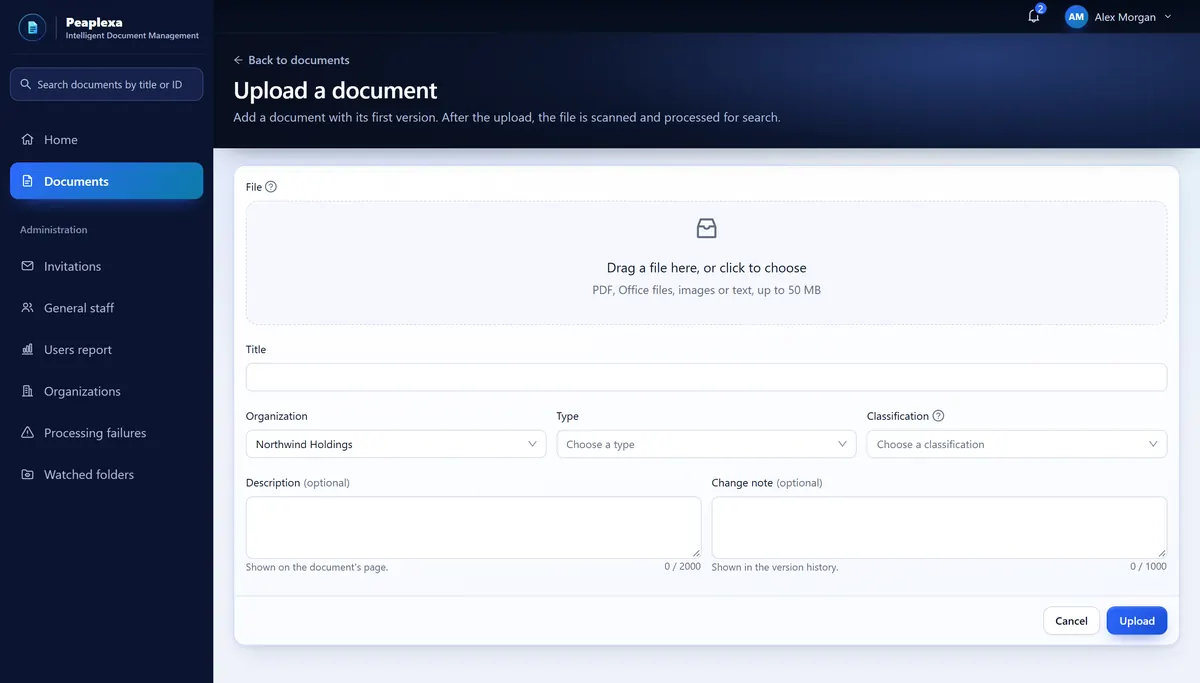
Title, organization, type and classification are required. Type and classification start empty, so someone always chooses them on purpose. Then the security scan runs, before anything else.

Per upload
One file, up to 50 MiB, with a name of up to 255 characters.
File types
PDF, DOC, DOCX, XLS, XLSX, PPT, PPTX, TXT, CSV, JPG, JPEG, PNG, TIF, TIFF, BMP, WEBP and GIF. ZIP files are refused.
Optional
A description, and a change note for the version history.
While sending
Progress with a Cancel button. Leaving the page asks first, and sending the same upload again never makes a second document.
The Peaplexa upload form: a drop area for one file up to 50 MB, a title field, and Type and Classification fields that start empty.
Type and classification start empty in the upload form. Sample data.

You always know where a file stands

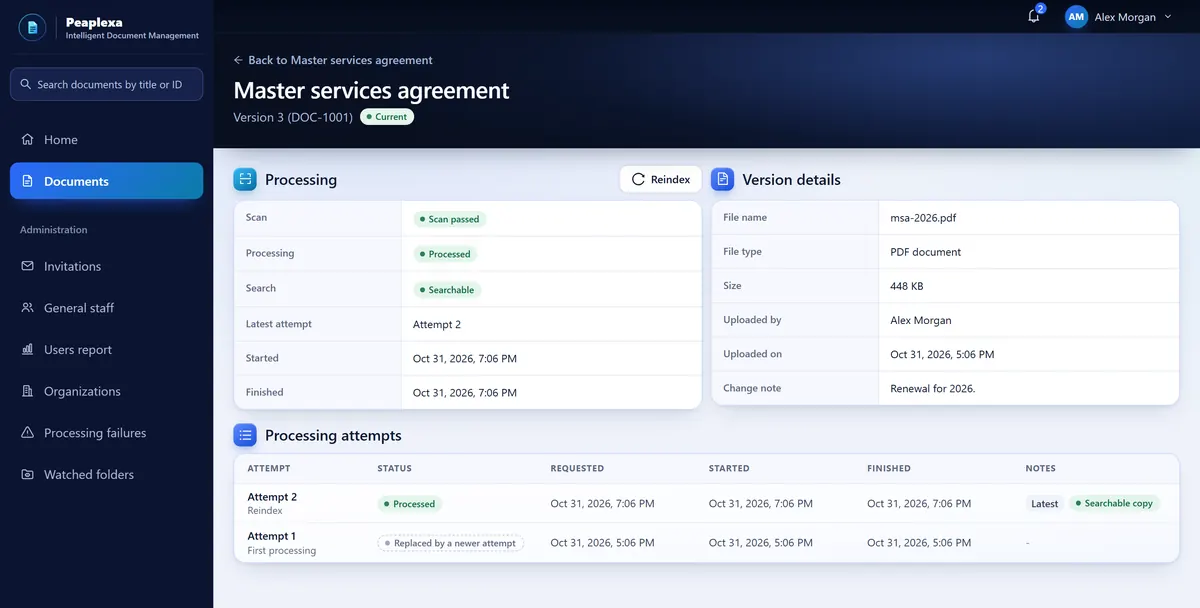
The scan runs first and processing second. The version page names the state of both, lists every attempt with its times, and updates on its own while the work runs.

The Processing panel of a Peaplexa version: Scan passed, Processed, Searchable, the latest attempt and its times, and a table of two processing attempts.
The Processing panel and attempts of a version, with sample data.

Security scan

  • Waiting for scan
  • Scanning
  • Scan passed
  • Blocked by the scan
  • Scan failed

Processing

  • Waiting to start
  • Preparing
  • Queued
  • Processing
  • Processed
  • Processing failed
  • Cancelled
  • Replaced by a newer attempt

Retry or reindex

An Org Admin can retry a failed attempt or reindex a version, after confirming. Both wait one minute after the last request, and the page counts it down.

Checked again

Some failed attempts are checked again automatically, at a time the page shows.

No retry for a blocked file

A file the scan blocks is never processed, and Retry and Reindex are not offered.

A numbered history, with the current version always clear

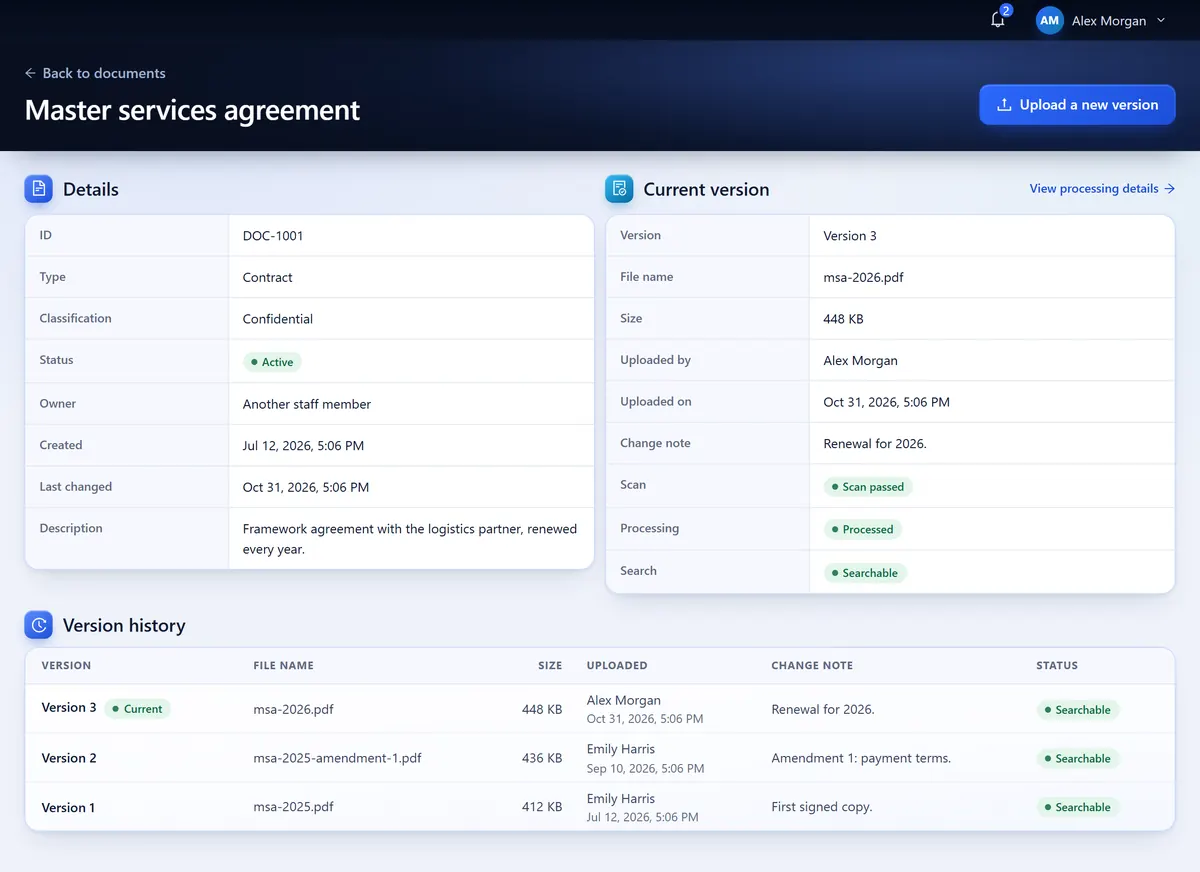
Each version keeps its file name, size, uploader, date, change note and state. A new version is current as soon as it is saved, and the older ones stay listed under it.

The version history of a Peaplexa document: Version 3 is current, with Version 2 and Version 1 below it, each with its file name, size, uploader, date and change note.
The version history on a document page, with sample data.

Who adds a version

An Org Admin, or the Document Manager who owns the document.

Only real changes

A file identical to the current version is refused.

No lost work

If someone else changed the document while you worked, the page reloads and keeps your file and note.

A blocked version

The page says so and you upload another. The earlier version does not become current again.

Three labels make any library easy to filter

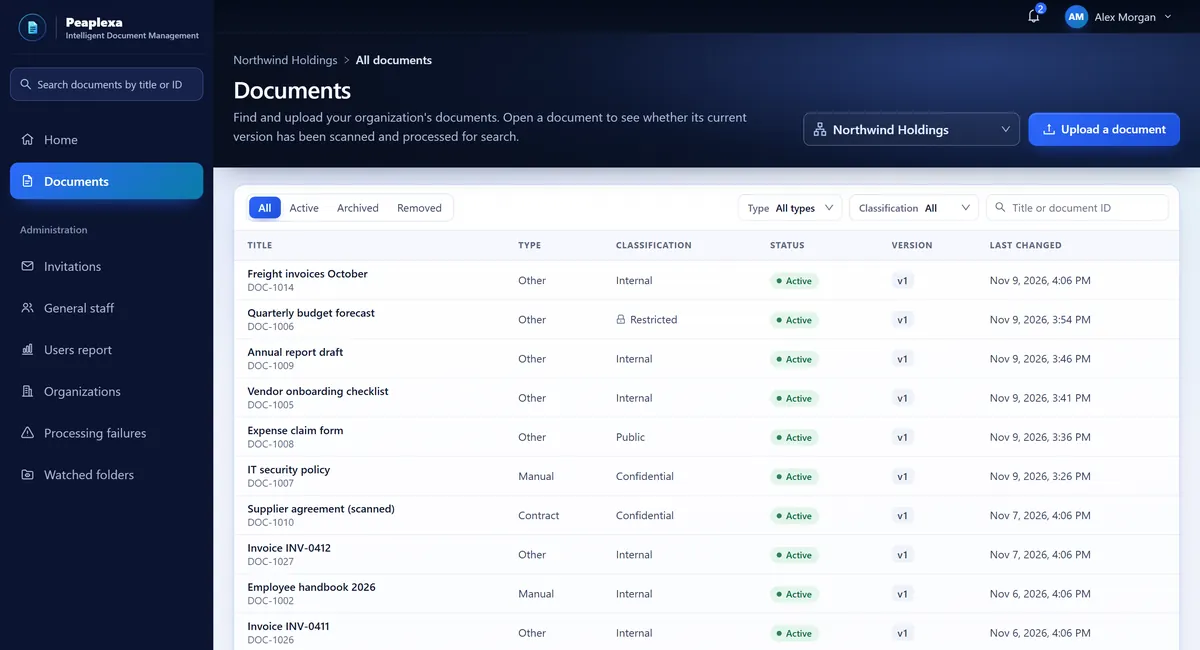
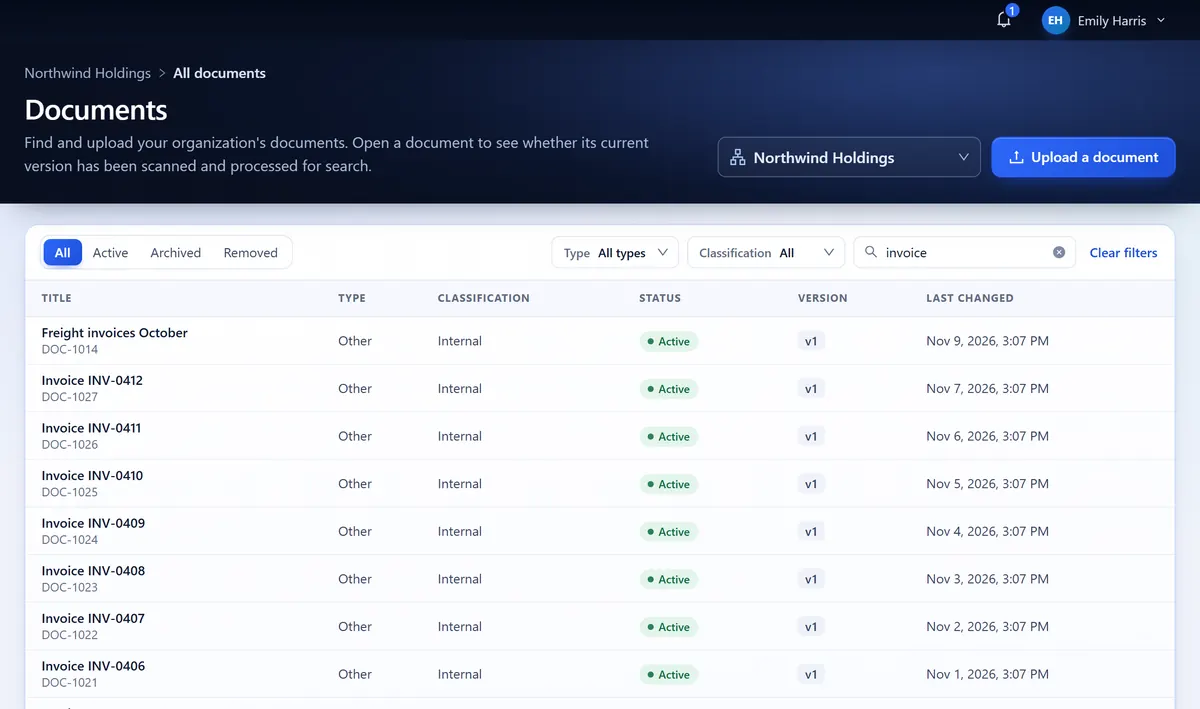
The library filters by type, classification and status, and finds a document by its title or ID. A filtered view is a link you can share.

The Peaplexa library with its status views and Type filter, listing invoices with their type, classification and status.
The library, filtered and searched. Sample data.
Type
ContractManualOther
Classification
PublicInternalConfidentialRestricted
Status
ActiveArchivedRemoved

Public is a label, not a setting: it does not make a file visible outside Peaplexa.

Roles belong to the workspace, not the person

Compare the roles

Each organization is a workspace. Its Org Admin gives every member a role there: Org Admin, Document Manager or Member. What a person can do follows the workspace they have open.

  • People and their roles

    Org Admins add an existing account, change its role, and deactivate or reactivate its access.

  • Never without an Org Admin

    A workspace always keeps at least one active Org Admin.

  • A clean switch

    Switching workspace clears the previous one's results and open documents.

EHEmilyone account

Northwind Holdings

Org Admin

Adds members, shares any version, retries and reindexes.

Contoso Legal

Member

Finds and reads documents. Changes nothing.

An example with sample names.

Share one exact version with a client or vendor

What clients and vendors see

Client and vendor contacts sign in as Portal Users. They open only the exact versions shared with their company.

  • Their company, linked

    An Org Admin adds the client or vendor company and links its contacts to it.

  • One exact version

    An Org Admin, or the Document Manager who owns the document, shares that exact version with the company.

  • Opened with its details

    The contact opens the shared version and its details. The rest of your workspace stays out of view.

Bring files in from a watched folder

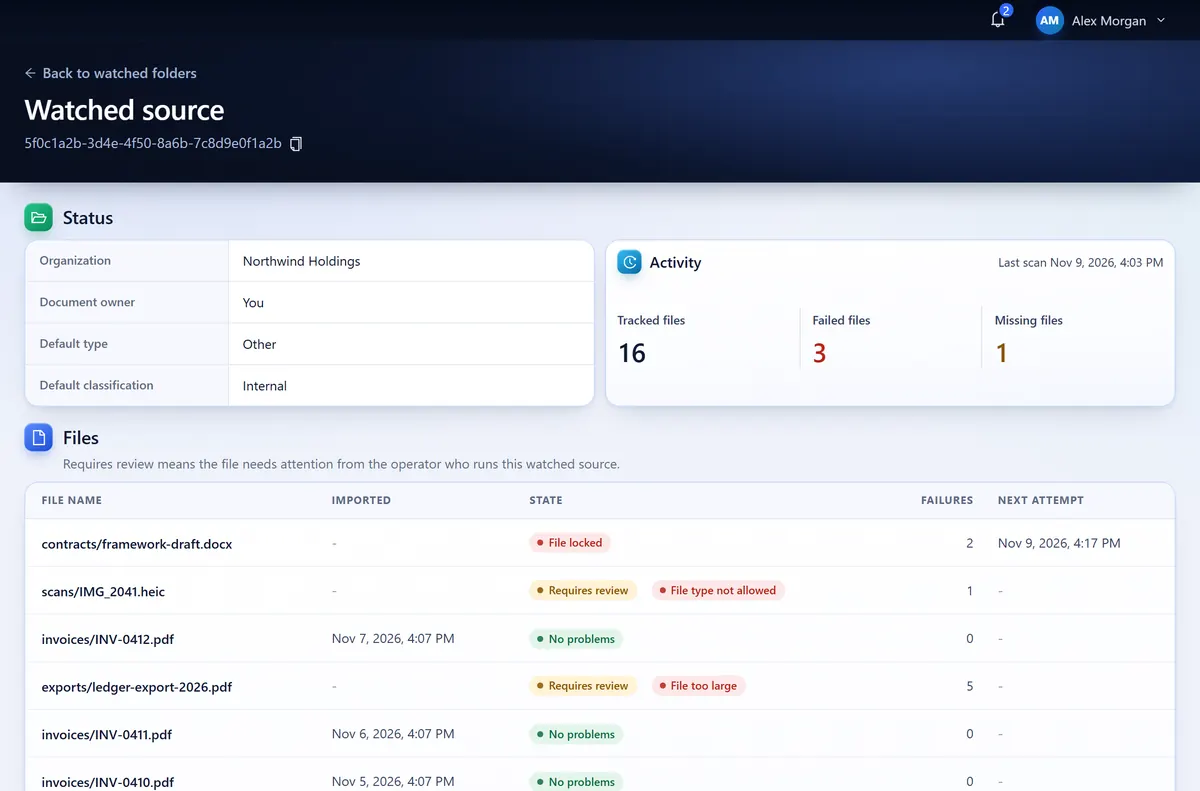
A watched source is set up on the server with its workspace, owner, default type and default classification.

A Peaplexa watched source: its workspace, owner and defaults, its activity with 16 tracked, 3 failed and 1 missing file, and a table of files with their states, failures and next attempt.
A watched source in Peaplexa, with sample data.

What an Org Admin sees

The last check, the counts of tracked, failed and missing files, and the state of each file.

Requires review

Marks a file that needs a person.

Where a version came from

Every version records whether it came from an upload or a watched folder.

What comes next

The server side of each is built. Their screens are being finished and tested, and this page will say when each one is ready.

Connected Apps Coming soon

Connect a product your company runs, such as an HR system. Its documents live in Peaplexa, and its people see only what they are granted.

Your product Its backend keeps the app's client ID and secret.
  • Exchanges them for an access token that lasts one hour.
  • Names the person it acts for with your product's own user ID.
  • UploadFiles and new versions, scanned like any upload
  • Sync accessMembers, groups and grants from your product
  • SearchOn behalf of a person, within their grants
  • ViewThe exact PDF, with a 30-minute viewer token
Peaplexa Each app's libraries, members and documents are kept apart.
  • Scans every upload before it is processed.
  • Checks the person's grants on every search and PDF request.
Register an app
An Org Admin registers it and gets a client ID and a secret, shown once.
Its own libraries
Each app has its own libraries, starting with a default one, and its own members and groups.
Four privileges
Upload, Manage access, Search and View. The app gets only what you allow.
Rotation
Up to two secrets can be active, so your backend can switch before the old one is revoked.
PDFs in your product
List up to ten HTTPS addresses of your product's site, and it can open the PDFs its people may see.
App member sign-in
People can sign in through your product's own sign-in to a read-only view: browse, search and open.

Sign-up by email Coming soon

Ask for a link with your work email, name your organization and become its first Org Admin. The link lasts 30 minutes. Today the Peaplexa team sets up each organization.

See a file go through Peaplexa

Tell us about the documents you keep and who needs them. We will walk you through an upload, its scan, its versions and who can open it.