The right access for every person in a workspace.
Each customer organization is a workspace. Inside it, people are an Org Admin, a Document Manager or a Member. Clients and vendors get a portal that shows only what was shared with them.
Org Admins run the workspace
They decide who is in the workspace and what each person can do, and they look after the documents when something needs attention.
What an Org Admin does
- Add an existing account as a member, change its role, deactivate or reactivate its access.
- Add client and vendor companies, link their contacts and share any version.
- Upload and revise any document, and retry or reindex a version.
- Open the Processing failures list and the workspace's watched folders.
- Register Connected Apps for your own products, which are coming soon.
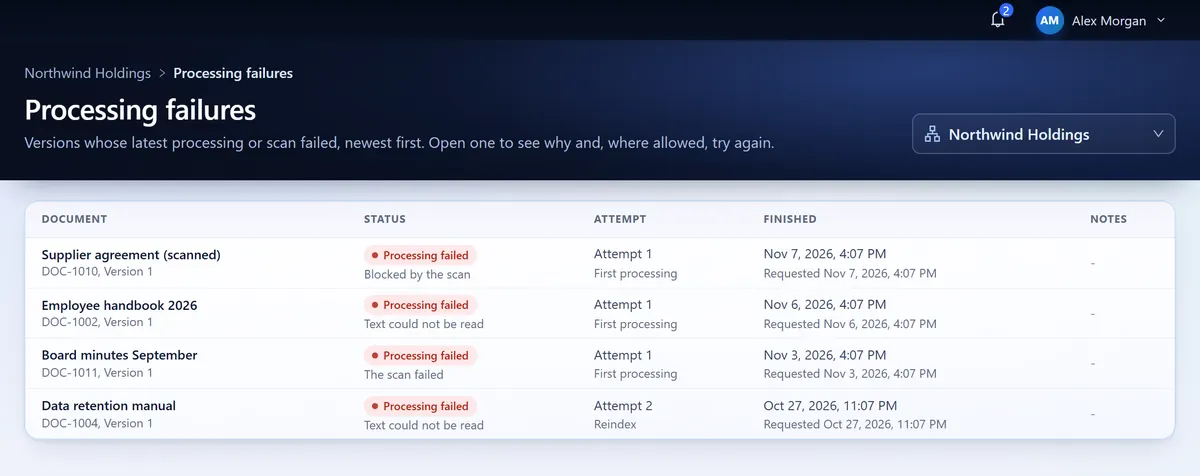
Processing failures
The versions in one workspace that could not be processed, with the reason and the attempt. Sample data.
Document Managers keep the files current
They bring documents into the workspace, keep the ones they own current and share them with the companies you work with.
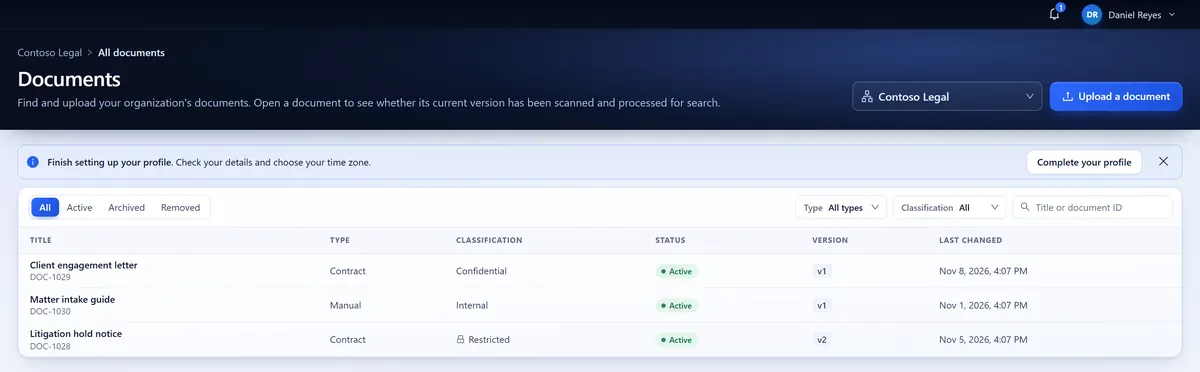
Add documents
Each one with a title, a type and a classification.
Add new versions
Of the documents they own, with a change note.
Share versions
The versions they own, with client and vendor companies.
Read everything
Every document in the workspace is open to them.
Members find and read what they need
A Member can browse the workspace, filter by type, classification and status, and find a document by its title or ID.
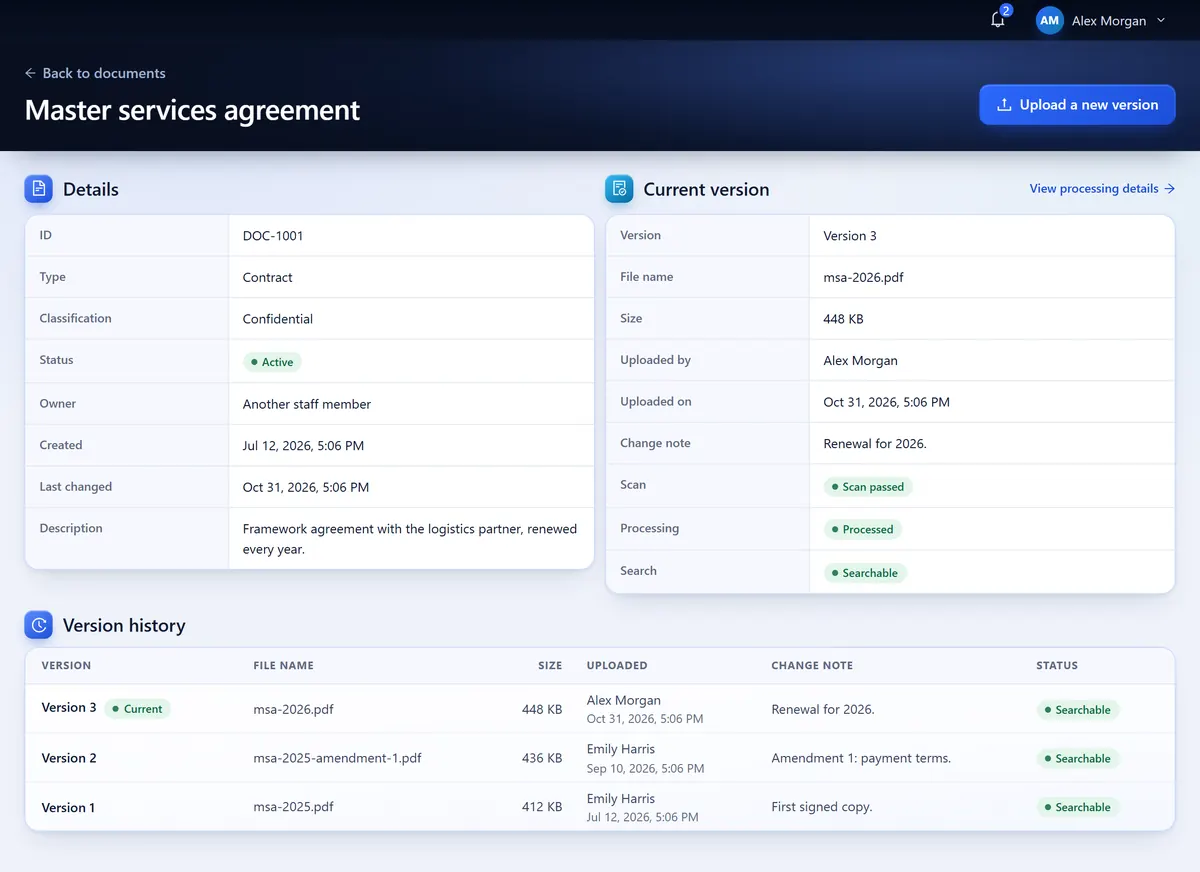
The current version of a document
As anyone in the workspace reads it. Sample data.
Read only
Nothing a Member does changes a file.
Details, versions and states
Each document's details, its versions and their scan and processing states are open to them.
Search inside documents Coming soon
Search inside documents and the PDF viewer are coming soon. Today a Member finds a document by its title or ID.
Clients and vendors see only what you share
Client and vendor contacts sign in as Portal Users. An Org Admin links them to their company, and they open the exact versions shared with it.
Linked to their company
An Org Admin adds the client or vendor company and links its contacts.
One exact version at a time
An Org Admin, or the Document Manager who owns the document, shares an exact version with the company.
Everything else stays out of view
Other documents, other versions, and the people inside your workspace.
The Peaplexa team sets you up
Our team works from a separate operator area, which has no document workspace.
Your organization
It creates your organization with its first Org Admin.
Invitations
It sends invitations to your staff and to client and vendor contacts.
Suspend or reactivate
It can suspend or reactivate an organization.
Sign-up by email Coming soon
You will also be able to create your organization yourself with a work email.
People in your own products, through Connected Apps Coming soon
When a product your company runs connects as a Connected App, its people get a read-only view of the documents they have been granted, and nothing more.
Your product's sign-in
They sign in through that product's own sign-in.
Read only, within their grants
Browse, search and open the PDF, within their grants.
Access kept in sync
Their access follows the members, groups and grants your product keeps in sync.
Compare the roles
The app shows each person what their role allows, and the server checks the role on every request.
| Capability | Org Admin | Document Manager | Member | Portal User |
|---|---|---|---|---|
| Documents | ||||
| Browse, filter and read documentsAll four. Portal Users: shared versions only | Yes | Yes | Yes | Shared only |
| Search inside documents Coming soonAll four. Portal Users: shared versions only | Yes | Yes | Yes | Shared only |
| Upload a documentOrg Admin and Document Manager | Yes | Yes | No | No |
| Add a versionOrg Admin, or the owning Document Manager | Yes | If owner | No | No |
| Share a version with a companyOrg Admin, or the owning Document Manager | Yes | If owner | No | No |
| Retry and ReindexOrg Admin only | Yes | No | No | No |
| Workspace | ||||
| Add members, set roles, deactivate accessOrg Admin only | Yes | No | No | No |
| Client and vendor companies and contactsOrg Admin only | Yes | No | No | No |
| Processing failures and watched foldersOrg Admin only | Yes | No | No | No |
| Connected Apps Coming soonOrg Admin only | Yes | No | No | No |
| Everyone | ||||
| Their own profile and checklistAll four | Yes | Yes | Yes | Yes |
See a file go through Peaplexa
Tell us about the documents you keep and who needs them. We will walk you through an upload, its scan, its versions and who can open it.