Security, stated plainly.
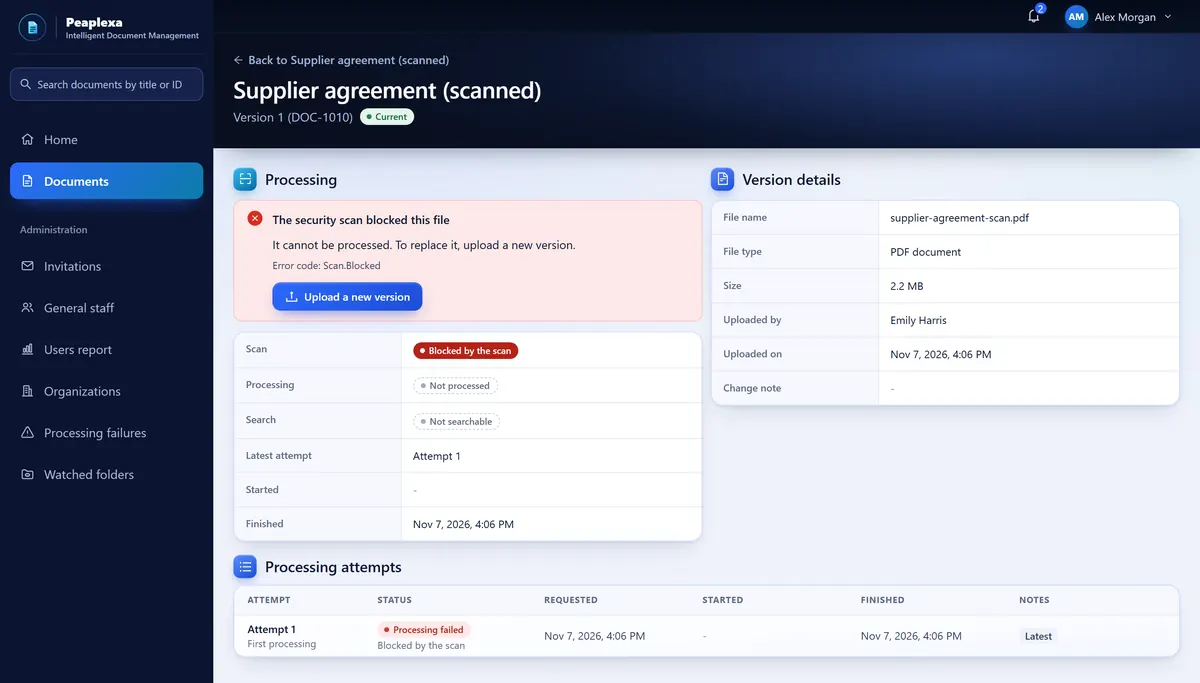
This page describes what Peaplexa does today, and nothing more. Where something is still on its way, it says so. A file the scan blocks, like the one here, is never processed.
At a glance
The short version. Each line links to the part of this page that explains it.
Every upload is scanned for threats before it is processed.
The upload scanEach request is checked against the person's role in that workspace.
Who can reach a fileClients and vendors reach only the exact versions shared with their company.
Who can reach a fileThe access token is kept in memory only, never in browser storage.
Sign-in and sessionsConnected App secrets are shown once and can be rotated. Coming soon
Connected App credentials
The upload scan
Every upload, and every new version, is scanned for threats before it is processed.
A blocked file is never processed
The version shows Blocked by the scan and Not processed. Retry and Reindex do not appear, and the server refuses a retry of an unsafe file. The way forward is a new version.
A failed scan is not a pass
Scan failed is its own state, and the page says the scan could not check the file. Some failed scans are tried again automatically, and an Org Admin can retry.
The state is always on screen
The document page and the version page both show the scan state in words.
A blocked version does not hide the problem
A new version is current as soon as it is saved. If its scan then blocks it, the earlier version does not become current again, and the page shows the problem until another version is uploaded.
Type and size are checked twice
The upload form checks the file type and size on the device, and the server checks every file again. ZIP files are refused.
Three ways a scan can end
Each is its own state, and the version page names it in words.
Every request is checked
The server checks each request against the person's role in that workspace, and against the document's owner where ownership matters.
Workspaces are separate
An organization's documents are for the members of its workspace. Deactivating a membership removes that access, and reactivating it restores it.
Members read, they do not change
Uploading is for Org Admins and Document Managers. Adding a version or sharing one is for an Org Admin or the Document Manager who owns the document.
Clients and vendors see only shared versions
A Portal User reaches a document only through an active link to their company and a share of that exact version.
The operator area holds no documents
The Peaplexa team sets up organizations and sends invitations from a separate operator area, which has no document workspace.
People join by invitation
Invitations come from the Peaplexa team, last 72 hours and can be revoked. Once a staff invitation is accepted, an Org Admin gives the account its role in the workspace.
Requests are rate limited
By default each user can make 100 requests per 60 seconds.
Sign-in and sessions
Staff and client and vendor contacts sign in with an email and a password. This is where their session lives, and how it ends.
Where the tokens live
The access token stays in page memory. The refresh token sits in an HttpOnly cookie.
In your browser
- Page memoryAccess token
- localStorage and sessionStorageNo tokens
Signing out reaches every tab
Signing out in one tab signs out every tab, and Sign out on all devices is in the account menu.
Account links work once
Invitation, password reset and email confirmation links work once.
One answer to Forgot password
Forgot password answers the same whether or not the account exists.
Sign-in returns you to Peaplexa
After sign-in, the app only returns you to a Peaplexa page.
Connected App credentials Coming soon
How your own products will connect, and how far their access reaches.
A secret is shown once
Registering an app shows its client ID and a secret one time, and the screen clears the secret when you close it. It belongs in your backend's secret store.
Rotation in three steps
Up to two secrets can be active. Issue a replacement, switch your backend, then revoke the old one. Revoking cuts off the tokens it issued at once.
Short-lived tokens
An app's access token lasts one hour. A viewer token lasts 30 minutes, covers one version, and access is checked again on every request for the PDF.
Each app stays in its own lane
An app's credentials reach only its own libraries, members and documents. Disabling the app or suspending the organization blocks its access.
People see only their grants
Search and viewing on behalf of a person return only what that person is granted, directly or through a group.
Two secrets, one switch
Up to two secrets can be active, so your backend can switch before the old one is revoked.
How long a token lasts
What this page leaves out
You will not find certifications, encryption details, hosting regions or uptime figures here. A statement goes on this page only when it is true of the product today. If your review needs answers on those topics, ask us.
See a file go through Peaplexa
Tell us about the documents you keep and who needs them. We will walk you through an upload, its scan, its versions and who can open it.